Thank You Anna, the Vietnamese Egg Rolls were a success.
Next up???ALL CONTRIBUTIONS OF ITEMS TO BE SOLD AT OUR FLEA MARKET TABLE ARE NOW BEING COLLECTED. PLEASE BRING IN YOUR ITEMS AS SOON AS POSSIBLE SO THAT WE CAN PLAN FOR THE EVENT.
RAM Electronics is a manufacturer, distributor and reseller of Audio, Video, Computer and Networking connectivity products and accessories as well as a Custom and OEM Contract Manufacturer.
Tuesday, May 26, 2009
Wednesday, May 20, 2009
How to Set your Display Settings when connecting your Computer to your HDTV
Often the trickiest thing to explain to someone setting up their PC or Mac to HDTV connection is not even the hardware, cables or adapters required. It's explaining how to set a proper HDTV resolution in "Display Settings" that their HDTV is going to to "like".
First, you should check your HDTV's specs to see what what HDTV resolutions it supports. Usually 480i, 480p, 720p and 1080i, but of course newer HDTV's often support 1080p. We suggest that if your HDTV supports 720p you try that first. If you're sure your TV supports 1080p you can try that, but sometimes you could run into issues for a variety of reasons, so we'd say try 720p first, then try 1080p. Why not 1080i? Because it is often much trickier than 720p.
Note: You need to use a computer monitor when making these settings, and it MUST support the desired settings you want to use on the TV.
Warning! If a setting does not work, like you have scrolling wackiness or nothing on your screen, don't just leave it on your screen! I have never blown up or damaged a TV yet subjecting them to bad signals, but I am a paranoid son-of-a-gun, who turns off the TV fairly quickly when things just don't work out. There has to be a reason why manuals give you scary warning messages about using incorrect settings so always be ready to hit the off button on the TV when doing this sort of thing!
How to adjust your Display Output Settings:
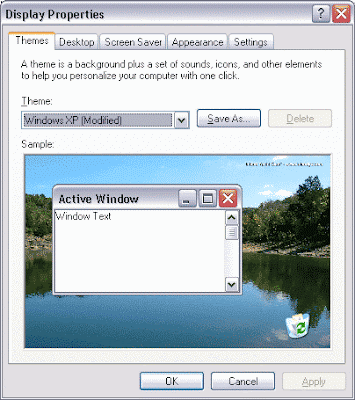
OK, first "Right-Click" on empty space on your "Desktop" and select "Properties".
You should get something like this.
Here's what that should look like:Often the trickiest thing to explain to someone setting up their PC or Mac to HDTV connection is not even the hardware, cables or adapters required. It's explaining how to set a proper HDTV resolution in "Display Settings" that their HDTV is going to to "like".
First, you should check your HDTV's specs to see what what HDTV resolutions it supports. Usually 480i, 480p, 720p and 1080i, but of course newer HDTV's often support 1080p. We suggest that if your HDTV supports 720p you try that first. If you're sure your TV supports 1080p you can try that, but sometimes you could run into issues for a variety of reasons, so we'd say try 720p first, then try 1080p. Why not 1080i? Because it is often much trickier than 720p.
Note: You need to use a computer monitor when making these settings, and it MUST support the desired settings you want to use on the TV.
Warning! If a setting does not work, like you have scrolling wackiness or nothing on your screen, don't just leave it on your screen! I have never blown up or damaged a TV yet subjecting them to bad signals, but I am a paranoid son-of-a-gun, who turns off the TV fairly quickly when things just don't work out. There has to be a reason why manuals give you scary warning messages about using incorrect settings so always be ready to hit the off button on the TV when doing this sort of thing!
How to adjust your Display Output Settings:
OK, first "Right-Click" on empty space on your "Desktop" and select "Properties".
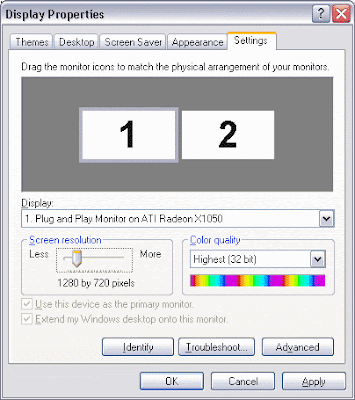
You should get something like this.

Use the little scroll bar for "Screen Resolution" until you get to 1280x720 pixels. If you don't have that option don't try something else like 1280x768 UNLESS you are connected to a VGA port on the TV and the TV supports that resolution. 1280x768 will not work with DVI, HDMI or when using a VGA to Component video "Transcoder".

OK, now click the "Advanced" Button. You should get this.
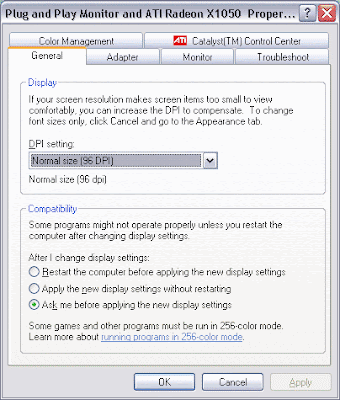
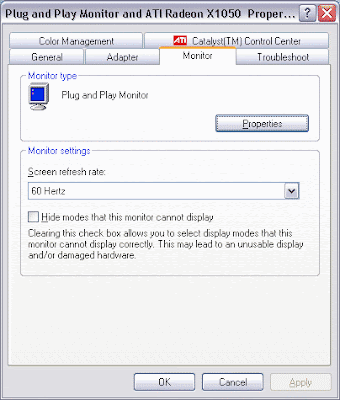
Click the "Monitor" Tab. Make sure the "Screen refresh rate" is set to "60 Hertz".
Click the "Apply" Button, and the setting should be set, if you don't get a visible image, do nothing and it should reset back to normal in 15 seconds. You should NOT restart your computer with the new settings! You still need to align the image properly and adjust for "overscan".
Now this part is where things vary. This computer has an ATI Video card. It uses ATI's Catalyst Control Center. Nvidia or Intel Graphics, etc will have different applications that often have similar functionality. Intel Graphics chips may lack resolutions or functionality required to set up things properly, so you may have to upgrade to a new Graphics card.
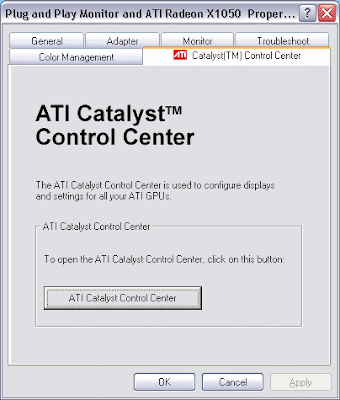
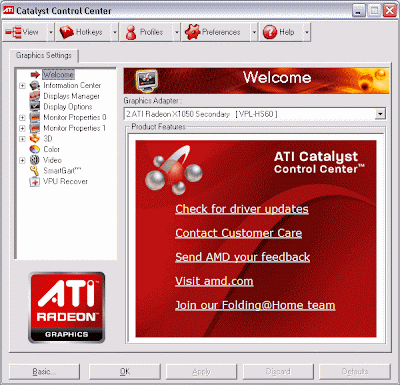
This is the ATI Catalyst Control Center.
Click the "+" sign to the left of "Monitor Properties 0" if the HDTV is going to be the main display, or "monitor 1" if you are going to be using 2 displays in "clone" mode or something.
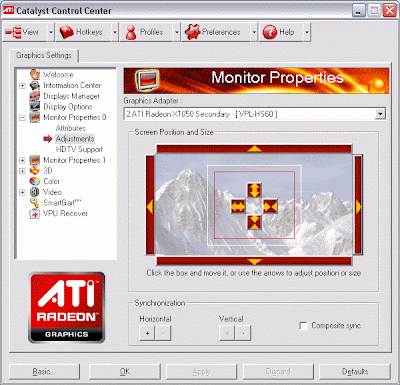
Click "Adjustments" and use the outside arrow controls carefully to move the image on the display up, down, left or right. Use the inside arrow controls to adjust for the image size vertically and horizontally. Take it slow and easy.
If necessary:
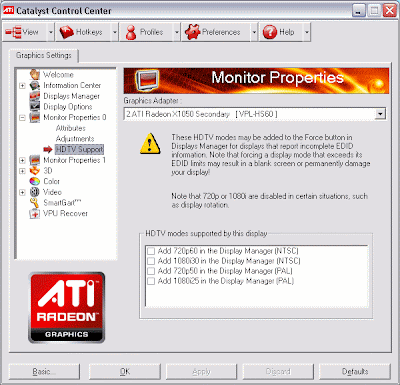
Read here for ATI's "HDTV Support" settings. You can enable support for the settings your sure your HDTV supports and then "force" them if required. If you don't get a picture after doing so, turn off the HDTV, reconnect your monitor and try something else.
Have fun! You can now say to freinds "I use my computer as an HTPC" or better still, "I use my computer as an HD-HTPC". Have fun watching Hulu, Netflix or other online TV services "full-screen" on your HDTV. Amaze your friends! Browse the internet on your 50-inch plasma or LCD, etc. Whatever you do don't read ANYTHING about calibrating your HDTV for your computer to TV connection! (at least for a little while) . If you think this was hard, that's where you get your HTPC "masters degree"!
Warning! (again) If a setting does not work, like you have scrolling wackiness or nothing on your screen, don't just leave it on your screen! I have never blown up or damaged a TV yet subjecting them to bad signals, but I am a paranoid son-of-a-gun, who turns off the TV fairly quickly when things just don't work out. There has to be a reason why manuals give you scary warning messages about using incorrect settings so always be ready to hit the off button when doing this sort of thing!
Friday, May 15, 2009
New GefenTV Wireless HDMI

Now Shipping! Get them while they Last! We have them at lowest price available!
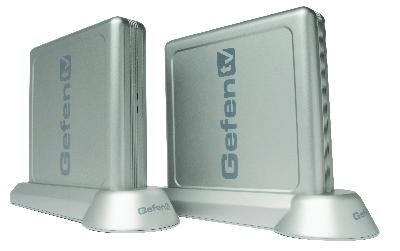
The GefenTV Wireless for HDMI Extender sends 1080p up to 100 feet (30 m) to any HDTV display.
The GefenTV Wireless for HDMI Extender delivers a plug and play wireless solution for HDMI sources placed up to 100 feet (30 meters) away. Hi-def resolutions of up to 1080p/24 or 1080i/60 are supported with 5.1 digital audio and additional L/R analog audio inputs.
The GefenTV Wireless for HDMI Extender is a wireless solution for extending any A/V sources utilizing HDMI such as satellite boxes, DVD players , and Blu-Ray players to a remote display. The Wireless for HDMI will even penetrate through walls and does not require line-of-sight.
Check it out now!
Monday, May 11, 2009
Vietnamese Egg Rolls (Cha Gio)

Cha Gio better known to us Americans' as Vietnamese Egg Rolls. This is on the schedule for our next fundraising event.
RAM Electronics has a long history of employing a large population of Vietnamese workers. Through the years "CHA GIO" has been on the menu of many events. It has become a item that many enjoy.
On May 18th we will have a CHA GIO (Vietnamese Egg Roll) Sale. They will be sold for $1.00 each. As always, the proceeds go into our American Cancer Society Breast Cancer Fund.
P.S. Please give a donation if you do not wish to eat Cha Gio....
A CHA GIO RECIPE SIMILAR TO WHAT WE WILL BE SERVING
Vietnamese Egg Rolls (Cha Gio) Recipe
Ingredients: 1/2 lb. raw shrimp, minced
1/2 lb. lean pork, minced
1/2 lb. bean sprouts
2 medium carrots
, grated
2 to 3 shallots, minced, if desired
1 oz. cellophane noodles(bean threads)
1 pkg. round rice paper(available at Oriental markets)
2 eggs, beaten
Oil for deep frying
Shredded scallions for garnish, if desired
Lettuce leaves
Dipping Sauce(Nuoc Cham)
1 fresh red chili or 2 small dried chilies
2 large garlic cloves, peeled
5 t sugar
Juice and pulp of 1/4 unpeeled lime
1/4 c fish sauce(available at Oriental markets)
1/3 c water
1 T shredded carrot
1 T minced scallion
1/2 lb. lean pork, minced
1/2 lb. bean sprouts
2 medium carrots
2 to 3 shallots, minced, if desired
1 oz. cellophane noodles(bean threads)
1 pkg. round rice paper(available at Oriental markets)
2 eggs, beaten
Oil for deep frying
Shredded scallions for garnish, if desired
Lettuce leaves
Dipping Sauce(Nuoc Cham)
1 fresh red chili or 2 small dried chilies
2 large garlic cloves, peeled
5 t sugar
Juice and pulp of 1/4 unpeeled lime
1/4 c fish sauce(available at Oriental markets)
1/3 c water
1 T shredded carrot
1 T minced scallion
Directions:
In large bowl, combine shrimp, pork, bean sprouts, carrots and shallots; set aside.Soak cellophane noodles in warm water about 15 minutes, until flexible; drain, cut into one-inch pieces and add to meat mixture. Toss until combined.
Run one sheet of rice paper quickly under tepid water, handling carefully because paper is very brittle. Place sheet on work surface and brush quickly with egg. Let stand a few seconds, until flexible. With very sharp knife, cut into quarters(or halves, if larger rolls are desired). Place one tablespoon filling on round edge of quarter piece; roll over once, then tuck in sides to enclose filling and continue rolling. If using halves, place about 1/3 cup filling on one end, roll once, tuck in sides and roll up. Continue filling and rolling until all filling is used. The egg will hold the rolls together. In wok or 10-inch frying pan, heat oil until a drop of water jumps on the surface. Fry about eight rolls at a time until golden brown, about 15 minutes. Drain on paper towels, garnish with scallions and serve with lettuce leaves and Nuoc Cham. Makes about 50 small or 30 large egg rolls.
Dipping Sauce (Nuoc cham)
If using fresh chili, remove seeds and membrane. In food processor or blender, combine chili, garlic, sugar, lime, fish sauce and water. Process or blend until well minced. Pour into serving dish and sprinkle with carrot and scallion. Makes about 3/4 cup
Thursday, May 07, 2009
AND THE WINNER IS....
CONGRATULATIONS ED LAFFERTY...
The much anticipated raffle drawing for the beautiful basket... Wait a second, "THANK YOU STEPHANIE FOR THE GENEROUS DONATION OF THE BASKET FILLED BEYOND THE RIM WITH GOOD AND USEFUL ITEMS". It was very creative on your part.
Now back to the winning moment, each employee watched as the winning ticket was drawn from the bin. "Ed Lafferty" this years winner of the Mothers Day Gift Basket.
This successful effort added $134.00 to our total $344.30. Statistically that is 11.476% of the total we are reaching for.
There is another fundraiser in 2 weeks which sounds very appetizing.
One last thing, Stephanie and Xiomara need some fun and creative ideas for the Flea Market Fundraiser that is being planned. Thought needs to be given as to:
Please see Xiomara and Stephanie with ways in which you would like to help us reach our goal...
The much anticipated raffle drawing for the beautiful basket... Wait a second, "THANK YOU STEPHANIE FOR THE GENEROUS DONATION OF THE BASKET FILLED BEYOND THE RIM WITH GOOD AND USEFUL ITEMS". It was very creative on your part.
Now back to the winning moment, each employee watched as the winning ticket was drawn from the bin. "Ed Lafferty" this years winner of the Mothers Day Gift Basket.
This successful effort added $134.00 to our total $344.30. Statistically that is 11.476% of the total we are reaching for.
There is another fundraiser in 2 weeks which sounds very appetizing.
One last thing, Stephanie and Xiomara need some fun and creative ideas for the Flea Market Fundraiser that is being planned. Thought needs to be given as to:
- The items that you would like to donate for sale
- Folding tables to hold the goods
- People that would like to donate their Saturday Morning covering the Sale
- Creative ways to decorate the table during the sale
- etc.....
Please see Xiomara and Stephanie with ways in which you would like to help us reach our goal...
Monday, May 04, 2009
MOTHERS' DAY BASKET RAFFLE
Tuesday, April 28, 2009
MEGA MILLION 50/50
Monday, April 27, 2009
New Energy Fueling Our Fundraising Efforts

The team now has a wider variety of representation. A warm welcome is extended to:
- Saran Eang
- Kim Nguyen
- Chau Nguyen
- Eddie Bell
- Dung the Doan
- Sang Nguyen
A Hot Dog Sale will be held on Thursday to cap off the month of April, $1.50 each.If hot dogs are not your thing May plans to be more eventful. Details to be published in a few days.
Wednesday, April 22, 2009
Bitstream vs PCM (LPCM) when using a DAC or in your Home Theater Setup
Why don't I hear the digital audio?!
In your Home Theater Setup:
When setting up digital audio for your home theater, you need to decide which component; the source device (Cable box, DVD, Blu Ray player, etc) or the Receiver (or Preamp/Processor) is going to "decode" the audio and possibly (depending on the analog or digital outputs you use) convert the signal from digital to analog. This is especially a point of confusion with the new Blu Ray players.
Here's the simpletons (mine) explanation:
Bitstream:
The Source device does not decode the signal, so the Receiver must. In other words, your player does not have to be capable of decoding Dolby Digital, DTS etc, and just outputs the undecoded digital information to the Receiver, which MUST be able to decode the signal it receives. So if your Blu Ray player cannot decode DTS-HD Master Audio but your receiver can, you should go into the Blu Ray players "Setup" menu, find the digital output setting and set it for "Bitstream".
PCM:
If your Source device can decode all of the digital audio formats you want, then use this. The setting is commonly called either LPCM or PCM. This is the most common fix for people who are unsure of the problem. This is also arguably the best setting for many Blu Ray Players even with receivers capable of decoding all of the new formats*. Blu Ray players which cannot decode some formats mated to receivers that can decode them should be set to bitstream instead.
Analog Output from Source:
Another question on DACs that may haunt you is whether to use the DAC in the source or the receiver? Some Disc Players and Receivers have decidedly different quality levels of DACs. To use the DAC in the DVD/SACD/CD/Blu Ray player it MUST have analog outputs which MUST be connected to the analog inputs on the receiver. You would do this when you feel the DAC is better in the Player. If you feel the DAC is better in the receiver, then you should set the player to output bitstream or pcm to the receiver and not use an analog connection between them.
Using an "outboard" DAC:
We sell a whole lot of DAC's (Digital to Analog Converters). Especially the new Gefen DAC's. They are great audio signal and routing problem solvers. We get some returns from users who get no output and think the unit is bad. In the vast majority of cases it's due to not setting their source components output properly. DACs that support LPCM and not Bitstream are not going to give you any output if the DVD/Blu Ray player is set to Bitstream! They don't have the decoders necessary to decode the digital audio signal before converting it to analog. Decoders for Dolby Digital and DTS come along with licensing fees after all, so a decoder with this capability always costs more. For Bitstream decoding and conversion you need a DAC/Decoder.
Gefen DAC
GTV-DIGAUD-2-AAUD
Gefen DAC/Decoder
GTV-DD-2-AA
*Blu Ray HD formats: yeah, we know, you won't get the groovy TrueHD or DTS-HD Master "light" to turn on, on the receiver, but you'll get all of the audio signals from the player.
Why don't I hear the digital audio?!
In your Home Theater Setup:
When setting up digital audio for your home theater, you need to decide which component; the source device (Cable box, DVD, Blu Ray player, etc) or the Receiver (or Preamp/Processor) is going to "decode" the audio and possibly (depending on the analog or digital outputs you use) convert the signal from digital to analog. This is especially a point of confusion with the new Blu Ray players.
Here's the simpletons (mine) explanation:
Bitstream:
The Source device does not decode the signal, so the Receiver must. In other words, your player does not have to be capable of decoding Dolby Digital, DTS etc, and just outputs the undecoded digital information to the Receiver, which MUST be able to decode the signal it receives. So if your Blu Ray player cannot decode DTS-HD Master Audio but your receiver can, you should go into the Blu Ray players "Setup" menu, find the digital output setting and set it for "Bitstream".
PCM:
If your Source device can decode all of the digital audio formats you want, then use this. The setting is commonly called either LPCM or PCM. This is the most common fix for people who are unsure of the problem. This is also arguably the best setting for many Blu Ray Players even with receivers capable of decoding all of the new formats*. Blu Ray players which cannot decode some formats mated to receivers that can decode them should be set to bitstream instead.
Analog Output from Source:
Another question on DACs that may haunt you is whether to use the DAC in the source or the receiver? Some Disc Players and Receivers have decidedly different quality levels of DACs. To use the DAC in the DVD/SACD/CD/Blu Ray player it MUST have analog outputs which MUST be connected to the analog inputs on the receiver. You would do this when you feel the DAC is better in the Player. If you feel the DAC is better in the receiver, then you should set the player to output bitstream or pcm to the receiver and not use an analog connection between them.
Using an "outboard" DAC:
We sell a whole lot of DAC's (Digital to Analog Converters). Especially the new Gefen DAC's. They are great audio signal and routing problem solvers. We get some returns from users who get no output and think the unit is bad. In the vast majority of cases it's due to not setting their source components output properly. DACs that support LPCM and not Bitstream are not going to give you any output if the DVD/Blu Ray player is set to Bitstream! They don't have the decoders necessary to decode the digital audio signal before converting it to analog. Decoders for Dolby Digital and DTS come along with licensing fees after all, so a decoder with this capability always costs more. For Bitstream decoding and conversion you need a DAC/Decoder.
Gefen DAC
GTV-DIGAUD-2-AAUD
Gefen DAC/Decoder
GTV-DD-2-AA
*Blu Ray HD formats: yeah, we know, you won't get the groovy TrueHD or DTS-HD Master "light" to turn on, on the receiver, but you'll get all of the audio signals from the player.
Wednesday, April 15, 2009
Whole House HDTV Distribution for less than an HDTV

Distribute HD Video and Audio over Cat5 Cables - Affordably...
HD Distribution has always been pretty darn expensive, not to mention complicated. But let's face it, adding an HD DVR, DVD or Blu Ray player and what have you (Roku, HTPC, PS3, Xbox) to every room in the house you have a TV in is a great way to go broke too. Well, if you can run Cat5 cables to all of your TV rooms you can pretty easily distribute HD Component Video (or Composite Video) and Digital or Analog audio to up to six rooms in your house. Ce Labs new inexpensive solution is a great way to cut down on your Cable/Satellite bill. With built-in IR distribution you can use your main remote control in any room to operate your Receiver and Source, so if you use your Receiver for switching, you can easily switch beween Sources. This is obviously a great system for Store Showrooms, Schools, Trade shows and Digital Signage as well.
The system consists of the Source unit and up to six Receiver Units to output to the TV and/or Audio System. Most Whole House Audio systems cost more than this!
Check it out:
Ce Labs Cat5 HD A/V Distribution System
Thursday, April 09, 2009
Connecting Laptop to HDTV (VGA to Component video)

Another Tech Support Question:
"Can I connect my laptop computer which has a VGA output to my A/V receiver which has component inputs?"
We have an article about connecting Computers to TV's and HDTV's in our:
How to connect your computer to your HDTV or Standard Def Television
To make a long story short, VGA and Component Video are somewhat different animals. A cable won't do it. You need a converter.
The tricky part is getting the laptop video output to be something that the TV will like. If your laptops built-in video is really good, then you can use a less expensive converter called a "Transcoder". A transcoder simply changes the encoding of the signal but does not change resolution or refresh rate, so what goes in is what comes out, just converted from RGB to Y-Pr-Pb. For an HDTV to accept the signal, a component video signal has got to be, 480i, 480p, 720p or 1080i. That means you have to set your laptop to one of these formats *or* you'll need to use a more expensive converter that is a "Video scaler". A video scaler can change the resolution of the video signal. When doing this, you want the least change in resolution possible for best results.
Typically, your best bet with a transcoder is to set up your laptop (or desktop) display to 1280x720@60Hz, and set the transcoder for 720p.
Typically, your best bet with a scaler/converter is to set up your laptop (or desktop) display to 1280x768@60Hz (if 1280x720@60Hz is not available) , and set the transcoder for 720p.
If you have not checked for video card driver upgrades, you should. Sometimes new drivers make it much easier to set this up by providing new resolutions and adjustments for "overscan"*.
*overscan is where the sides and/or bottom of the display are clipped off to some extent making navigation difficult.
Show your support!
Looking for a stylish way to show your support for those with breast cancer?
If so, please take a look at our "Money Collection Jars" scattered around the building.
Or if you want to volunteer for any activity or have any ideas to help us with the
fundraising please contact one of the coordinators.
We thank you for your support!
If so, please take a look at our "Money Collection Jars" scattered around the building.
Or if you want to volunteer for any activity or have any ideas to help us with the
fundraising please contact one of the coordinators.
We thank you for your support!
Wednesday, April 08, 2009
120MHz, 240Mhz and 60MHz HDMI Cables?
According to our Tech Support guy people still keep asking about 120MHz, 240Mhz and 60MHz HDMI Cables. This whole thing was covered quite nicely in an article by Blue Jeans Cable's Kurt Denke on Audioholics.
Let's make it real simple:
Your display is doing all that 120Hz or 240Hz stuff internally. The cable puts out what the Disk Player is putting out. That is usually somewhere between 480i-30Hz to 1080p-60Hz. You might get 1080p-24Hz output going to a Display, but that's easier than 1080p-60Hz for the cable. Unless you have a scaler outputting 1080p-72Hz to a Display that can accept it, you are not doing anything interesting to a cable.
And don't get me started on that "deep color" thing!
What a scam. Do you have any Deep Color content that your "Source Device" can output? Is there a likelihood that device will work with whatever new TV format replaces the current version of HDTV or Blu Ray? Again, high end users have some possible reasons to worry about deep color, but us normal folks can forget it.
Let's make it real simple:
Your display is doing all that 120Hz or 240Hz stuff internally. The cable puts out what the Disk Player is putting out. That is usually somewhere between 480i-30Hz to 1080p-60Hz. You might get 1080p-24Hz output going to a Display, but that's easier than 1080p-60Hz for the cable. Unless you have a scaler outputting 1080p-72Hz to a Display that can accept it, you are not doing anything interesting to a cable.
And don't get me started on that "deep color" thing!
What a scam. Do you have any Deep Color content that your "Source Device" can output? Is there a likelihood that device will work with whatever new TV format replaces the current version of HDTV or Blu Ray? Again, high end users have some possible reasons to worry about deep color, but us normal folks can forget it.
Friday, April 03, 2009
Comcast Installation
I stopped by my parents to check out their new Hi-Def television. The picture didn't look right so I peeked behind the set to inspect the cable connections. The cable installer used a variety of composite and audio/video cables that were left over from the previous system to cobble together a "component like" cable to connect the TV to the cable box and the DVD player to the TV. In addition the CATV connector was poorly crimped to the RG6 cable . I asked my Dad if he had hooked this up himself, and he told me that it has all been done by the man from Comcast.
I immediately swapped out the "component like" cables with two HDMI cables, crimped on a new CATV connector and had the system working like it was supposed to. The picture looked great!
Has anyone else had a similar experience?
I immediately swapped out the "component like" cables with two HDMI cables, crimped on a new CATV connector and had the system working like it was supposed to. The picture looked great!
Has anyone else had a similar experience?
2009 BREAST CANCER FUNDRAISING CAMPAING
TEAM RAM has just began the American Cancer Society Breast Cancer Fundraising campaign for 2009.
Our team Leaders are as follows:
The initial fundraiser is the "Money Collection Jars". We have 4 scattered around the containers throughout the building. This seems to be an idea that is going over well with our employees.
I have a suggestion for a future fundraising effort. A table at the local Flea Market held at Chic-Fil-A. Chick-Fil-A opens up their parking lot to the community monthly, April thru September for a Flea Market. The parking is usually jammed with people selling and buying items. I believe that we could get together donated sellable items and turn them into currency towards our $3,000 goal.
Wyonnia
Our team Leaders are as follows:
- Xiomara Zepeda
- Stephanie Contino
- Edith Redmond
- Irene Castro
- Vanita Gondalia
The initial fundraiser is the "Money Collection Jars". We have 4 scattered around the containers throughout the building. This seems to be an idea that is going over well with our employees.I have a suggestion for a future fundraising effort. A table at the local Flea Market held at Chic-Fil-A. Chick-Fil-A opens up their parking lot to the community monthly, April thru September for a Flea Market. The parking is usually jammed with people selling and buying items. I believe that we could get together donated sellable items and turn them into currency towards our $3,000 goal.
Wyonnia
Subscribe to:
Posts (Atom)