Part III
The Final Frontier
A few light years ago, we started to explain some of the small nuisances associated with HDTV, resolutions, scaling, connections, and a plethora of raw details that were fascinating and others plain boring. It is time to close this topic and move on to more interesting subjects, ie HDTV tuning and recording on your PC using Vista Media Center and Windows 7. You just can’t wait, neither can we, but let’s finish the business at hand.
Everyone is fat on your HDTV and disproportionately wide because you are not viewing a high definition program formatted properly. Your TV or set-top cable/satellite box is taking a standard definition 4:3 ratio signal and stretching it across your 16:9 ratio HDTV’s screen. This is distorting the picture content and one of the more heinous problems when viewing SDTV(Standard Definition) on a HDTV(High Definition) systems. Sounds like a bunch of perversion or STD’s(set-top diseases, got you!), it is. Some of you are paying for HDTV program and only viewing SDTV. How do your cure this without killing the HDTV? It is sometimes easy and some times impossible.
Let’s dive into our most recent example. Comcast Cable broadcast their HDTV channels in the 200-channel range. SDTV is below the 200 range and some are above 300. All my HDTV channels, when not broadcasting HDTV programs are proportional and correctly formatted to 4:3 with black side panels, as they should, since this is a digital HDTV signal. When tuned below the 200 channel all the pictures stretch to fit the screen. This is one of those aggravating big brother cable company problems, which you have to tolerate. The HDTV then actives the scaling that stretches a SDTV 4:3 picture to fit the 16:9 screen.
How do you fix this problem? On some set-top box, you can set the box to output 480i, 480p, 1080i or 720p. This sound like a good idea, but don’t. Setup the box to output the native channel resolution or pass-thru. The electronics in most new HDTV’s are far superior to the set-top box and does a better scaling job then any set-top box. If the picture has to stretch to fill, it will be a better stretch. ESPN, ABC and Fox HDTV broadcast fast action sports and use 720p, for better image performance. You will want these channels in the native 720p. How can you tell if your set-top is native? When you changing channels you will get a slight hesitation as the HDTV’s scaling adjust. You can also press display on your TV’s remote control to check the channels resolution. If any of your 720p channels are at a different resolution other than 720p, your set-top is scaling. Contact your HDTV provider and get them to set-up for pass-.thru.
One other thought on the situation, if you are not using a component video or HDMI connection from your set-top box or DVD player you can not get a high-definition picture. See our connection guide on all the types of video connection options available.
http://www.ramelectronics.net/howto-av.ep
Finally, with all the programming available online many are connecting their PC’s to the HDTV. This is simple if you have VGA or HDMI outputs from your computer and matching VGA or HDMI connections on your HDTV. A cable connection will be sufficient. However, if the outputs and inputs are different types or resolutions, there are a number of converter options available for matching the two, but we will save that for another discussion.
Showing posts with label Setting up PC or Mac to HDTV Resolutions. Show all posts
Showing posts with label Setting up PC or Mac to HDTV Resolutions. Show all posts
Tuesday, April 27, 2010


Wednesday, May 20, 2009
How to Set your Display Settings when connecting your Computer to your HDTV
How to Set your Display Settings when connecting your Computer to your HDTV
Often the trickiest thing to explain to someone setting up their PC or Mac to HDTV connection is not even the hardware, cables or adapters required. It's explaining how to set a proper HDTV resolution in "Display Settings" that their HDTV is going to to "like".
First, you should check your HDTV's specs to see what what HDTV resolutions it supports. Usually 480i, 480p, 720p and 1080i, but of course newer HDTV's often support 1080p. We suggest that if your HDTV supports 720p you try that first. If you're sure your TV supports 1080p you can try that, but sometimes you could run into issues for a variety of reasons, so we'd say try 720p first, then try 1080p. Why not 1080i? Because it is often much trickier than 720p.
Note: You need to use a computer monitor when making these settings, and it MUST support the desired settings you want to use on the TV.
Warning! If a setting does not work, like you have scrolling wackiness or nothing on your screen, don't just leave it on your screen! I have never blown up or damaged a TV yet subjecting them to bad signals, but I am a paranoid son-of-a-gun, who turns off the TV fairly quickly when things just don't work out. There has to be a reason why manuals give you scary warning messages about using incorrect settings so always be ready to hit the off button on the TV when doing this sort of thing!
How to adjust your Display Output Settings:
OK, first "Right-Click" on empty space on your "Desktop" and select "Properties".
You should get something like this.
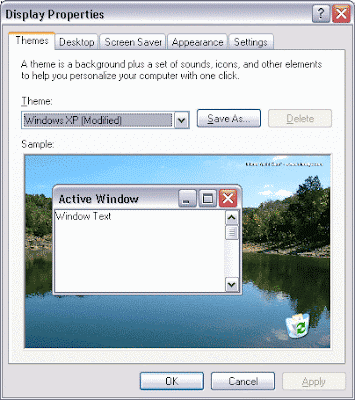
Here's what that should look like:Often the trickiest thing to explain to someone setting up their PC or Mac to HDTV connection is not even the hardware, cables or adapters required. It's explaining how to set a proper HDTV resolution in "Display Settings" that their HDTV is going to to "like".
First, you should check your HDTV's specs to see what what HDTV resolutions it supports. Usually 480i, 480p, 720p and 1080i, but of course newer HDTV's often support 1080p. We suggest that if your HDTV supports 720p you try that first. If you're sure your TV supports 1080p you can try that, but sometimes you could run into issues for a variety of reasons, so we'd say try 720p first, then try 1080p. Why not 1080i? Because it is often much trickier than 720p.
Note: You need to use a computer monitor when making these settings, and it MUST support the desired settings you want to use on the TV.
Warning! If a setting does not work, like you have scrolling wackiness or nothing on your screen, don't just leave it on your screen! I have never blown up or damaged a TV yet subjecting them to bad signals, but I am a paranoid son-of-a-gun, who turns off the TV fairly quickly when things just don't work out. There has to be a reason why manuals give you scary warning messages about using incorrect settings so always be ready to hit the off button on the TV when doing this sort of thing!
How to adjust your Display Output Settings:
OK, first "Right-Click" on empty space on your "Desktop" and select "Properties".
You should get something like this.

Click on the "Settings" Tab and you should get something like this.


Use the little scroll bar for "Screen Resolution" until you get to 1280x720 pixels. If you don't have that option don't try something else like 1280x768 UNLESS you are connected to a VGA port on the TV and the TV supports that resolution. 1280x768 will not work with DVI, HDMI or when using a VGA to Component video "Transcoder".

OK, now click the "Advanced" Button. You should get this.

Click the "Monitor" Tab. Make sure the "Screen refresh rate" is set to "60 Hertz".
Click the "Apply" Button, and the setting should be set, if you don't get a visible image, do nothing and it should reset back to normal in 15 seconds. You should NOT restart your computer with the new settings! You still need to align the image properly and adjust for "overscan".

Now this part is where things vary. This computer has an ATI Video card. It uses ATI's Catalyst Control Center. Nvidia or Intel Graphics, etc will have different applications that often have similar functionality. Intel Graphics chips may lack resolutions or functionality required to set up things properly, so you may have to upgrade to a new Graphics card.

This is the ATI Catalyst Control Center.
Click the "+" sign to the left of "Monitor Properties 0" if the HDTV is going to be the main display, or "monitor 1" if you are going to be using 2 displays in "clone" mode or something.

Click "Adjustments" and use the outside arrow controls carefully to move the image on the display up, down, left or right. Use the inside arrow controls to adjust for the image size vertically and horizontally. Take it slow and easy.

If necessary:
Read here for ATI's "HDTV Support" settings. You can enable support for the settings your sure your HDTV supports and then "force" them if required. If you don't get a picture after doing so, turn off the HDTV, reconnect your monitor and try something else.

Have fun! You can now say to freinds "I use my computer as an HTPC" or better still, "I use my computer as an HD-HTPC". Have fun watching Hulu, Netflix or other online TV services "full-screen" on your HDTV. Amaze your friends! Browse the internet on your 50-inch plasma or LCD, etc. Whatever you do don't read ANYTHING about calibrating your HDTV for your computer to TV connection! (at least for a little while) . If you think this was hard, that's where you get your HTPC "masters degree"!
Warning! (again) If a setting does not work, like you have scrolling wackiness or nothing on your screen, don't just leave it on your screen! I have never blown up or damaged a TV yet subjecting them to bad signals, but I am a paranoid son-of-a-gun, who turns off the TV fairly quickly when things just don't work out. There has to be a reason why manuals give you scary warning messages about using incorrect settings so always be ready to hit the off button when doing this sort of thing!
Subscribe to:
Posts (Atom)